
Online Time Clock MTS can be used free of charge for 30 days. Signing up for a trial account takes just a few seconds!
Online Time Clock MTS Screenshots
The Time Clock
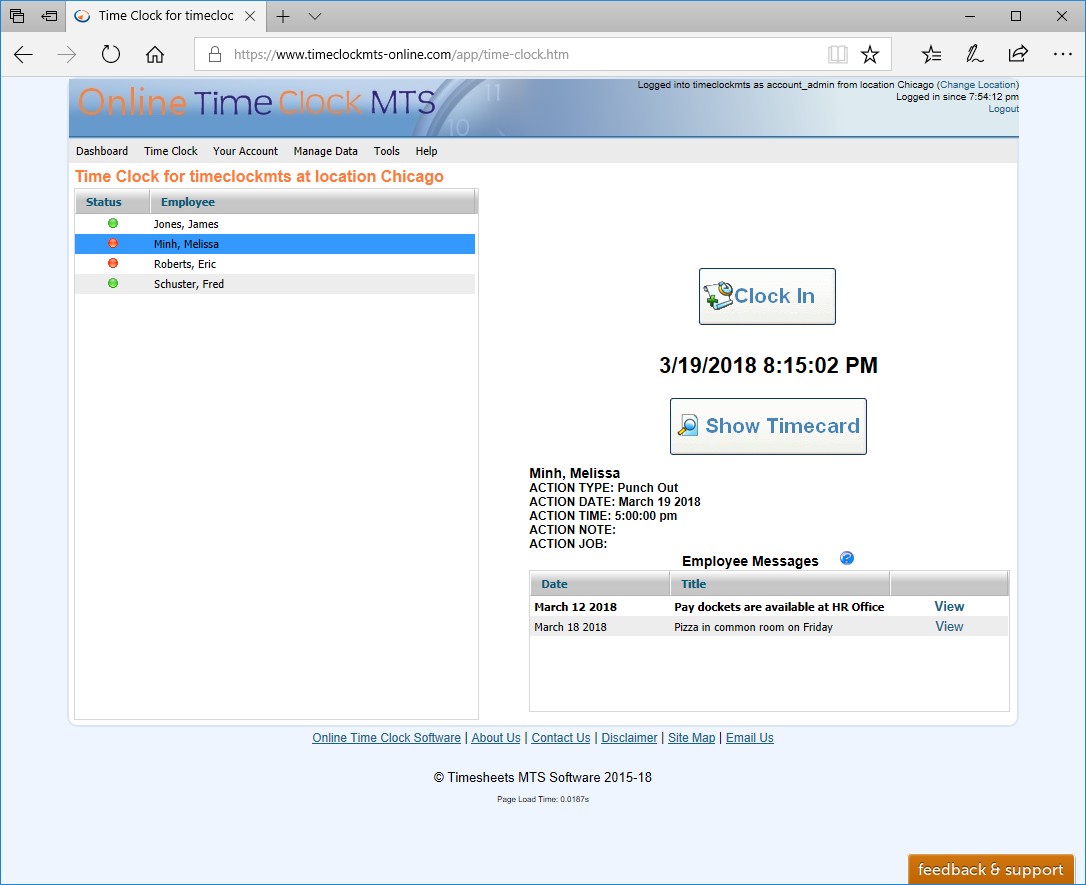
Our employee timeclock can be used by groups of employees or individual employees from desktop computers or from any mobile device with an internet connection and web-browser.
Employees can enter notes, read messages from your payroll, enter job codes, and even view their own time cards.
Click to View Employee Timeclock Screens
GPS Tracking and GeoFences
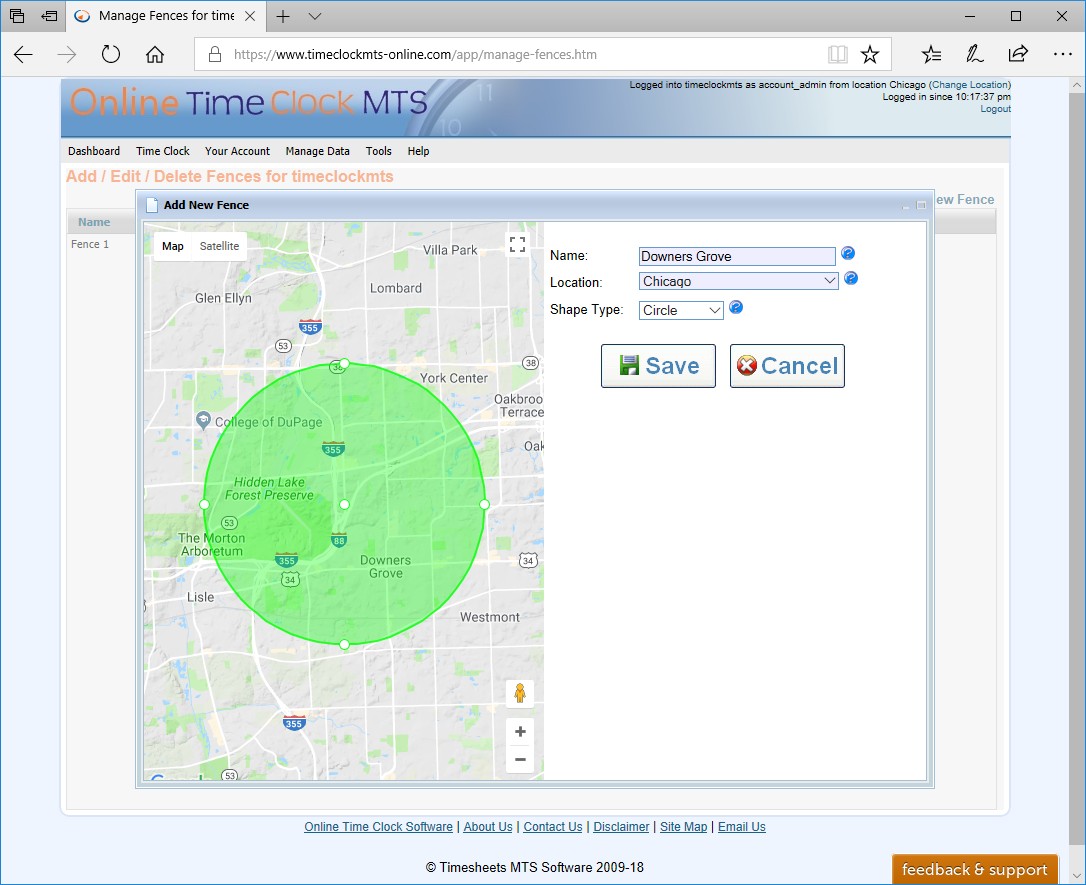
Online Time Clock MTS can easily record the GPS location of computers, phones, or tablets used by your employees when they clock in or out. You can also create 'GeoFences', or
geographic regions where your employees are allowed to punch in or out of our timeclock system.
Click to View GeoLocation and GeoFencing Screens
Managing Employees
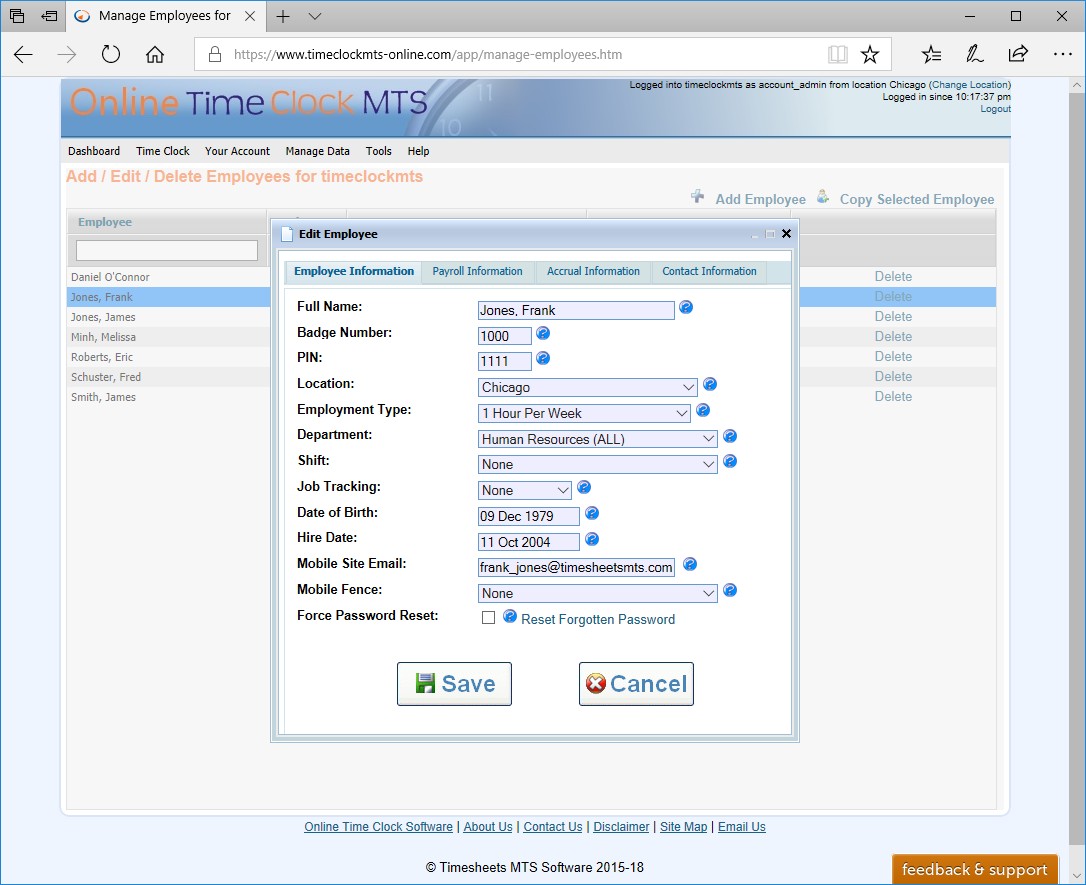
Employees in Online Time Clock MTS represent the real people you want to track attendance information for. Our employees are very flexible and can be configured
to suit the way you work with pay rates, over time and holidays. Don't forget that Online Time Clock MTS can track both hourly and salaried employees and that your employees
can punch in and out using a grouped time clock login from a desktop computer, or individually using their own mobile device timeclock.
Click to View Employee Detail Screens
Job Tracking in Online Time Clock MTS

If you need to track the time your employees spend working on specific jobs, or working for clients or customers, or just want to know in detail how they are spending their
time then Online Time Clock MTS includes a job tracking system. Create and manage as many jobs as you need, have your employees punch in a job code as they clock in or out,
and then report instantly on how many hours your people have been working on any job.
Click to View Job Tracking Screens
Email Alerts
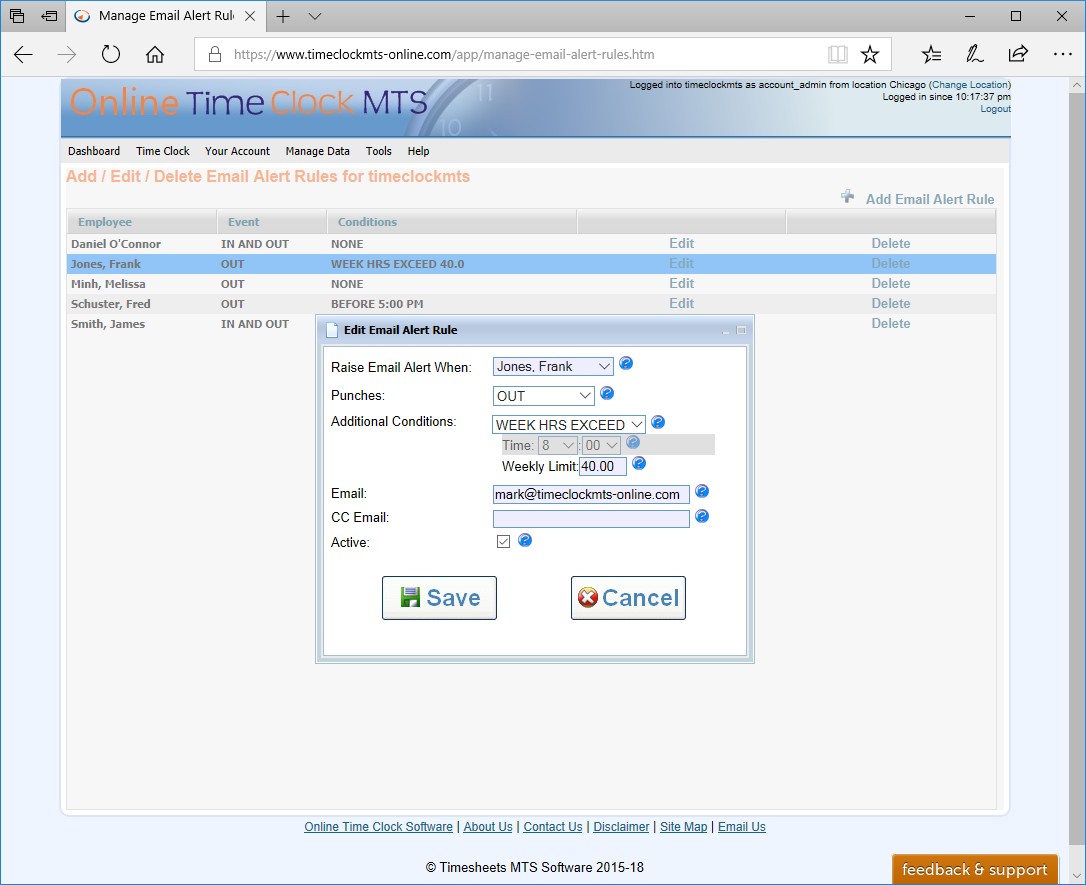
Online Time Clock MTS can automatically notify you of events using our Email Alert Rule system. You could be notified when particular employees arrive at work, if they clock in or
out late, or if they are approaching your weekly overtime limits.
Click to View Email Alert Screens
Logging in to Online Time Clock MTS
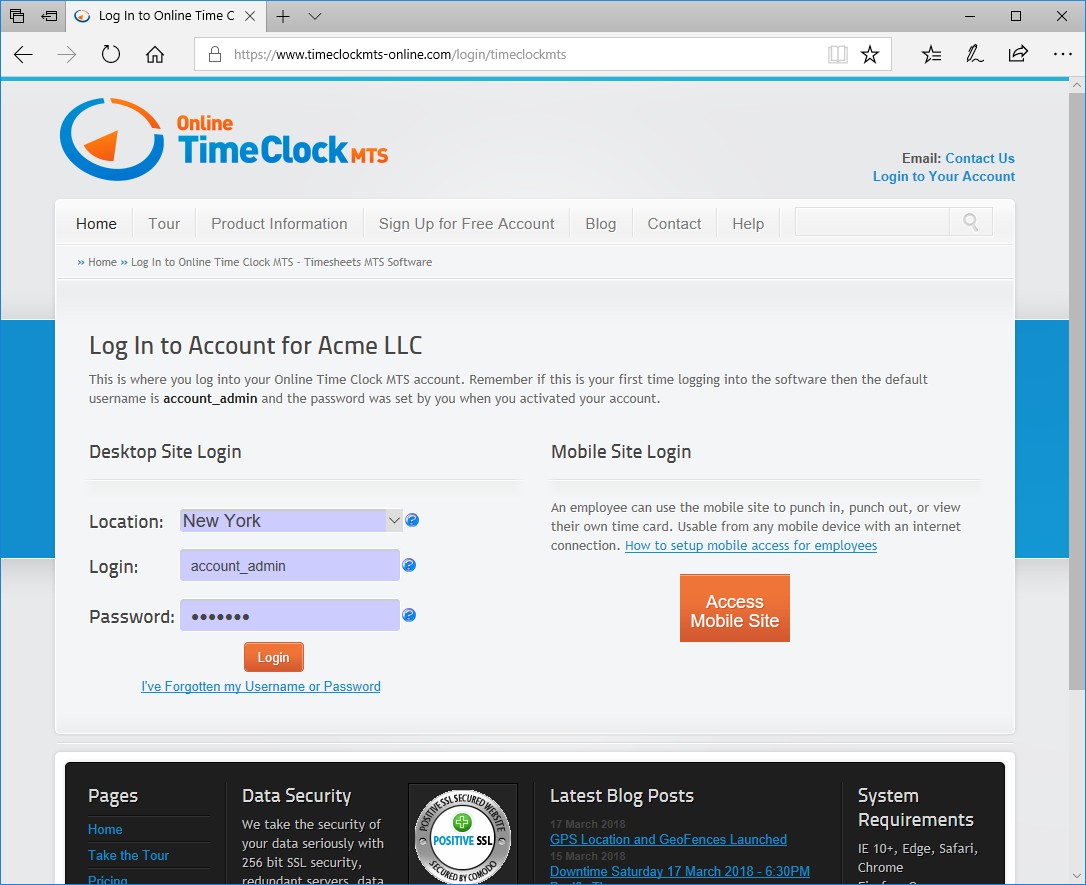
Logins are used to control access to your time clock account. Timeclock security accounts are used by employees who need to clock in and out, reports security logins are used
by staff who need to run payroll reports, and administrator security accounts can control all aspects of a time clock location. Your Account Administrator log in can control all
features of your time clock account regardless of location.
Click to View Login Screens
Time Clock Locations
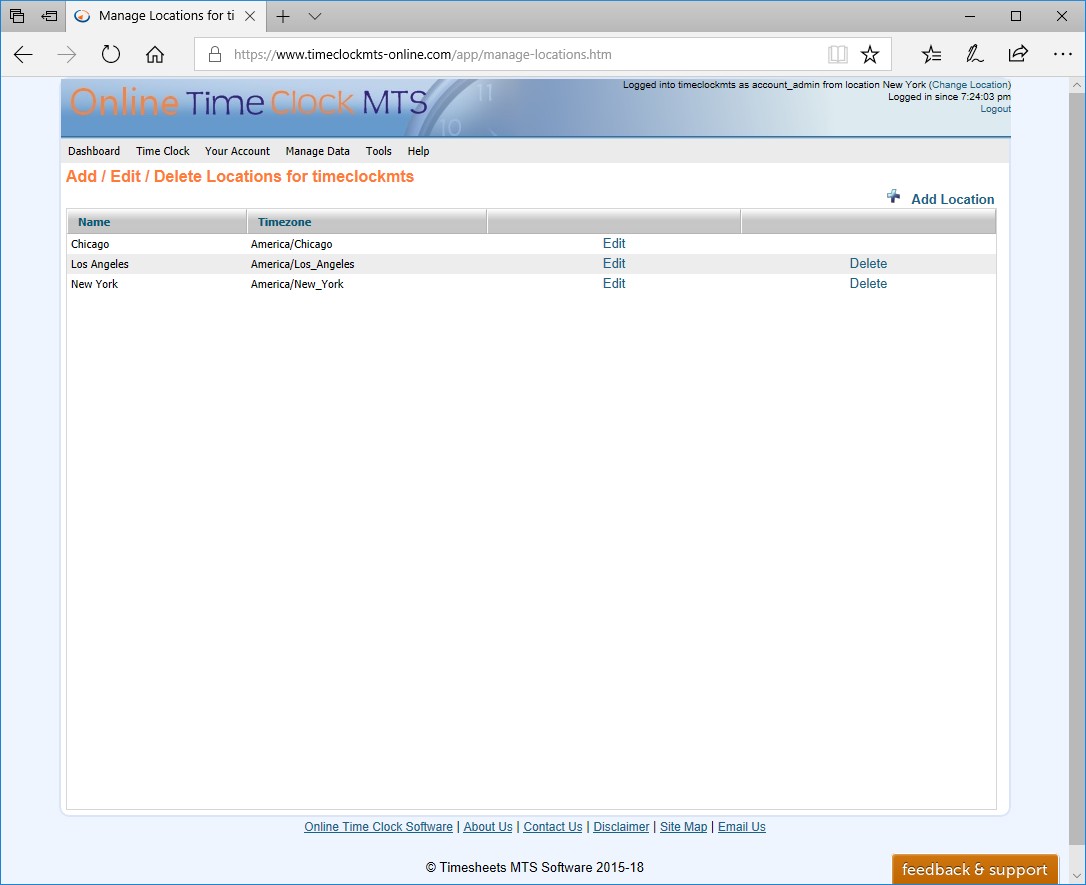
Time Clock Locations allow you define and control different administrative units within your Online Time Clock MTS account. This might be because you have business units in different timezones,
, or perhaps you have operations with different overtime rules, or simply because you want to partition groups of employees to use different time clocks.
Click to View Location Screens
Reporting in Online Time Clock MTS
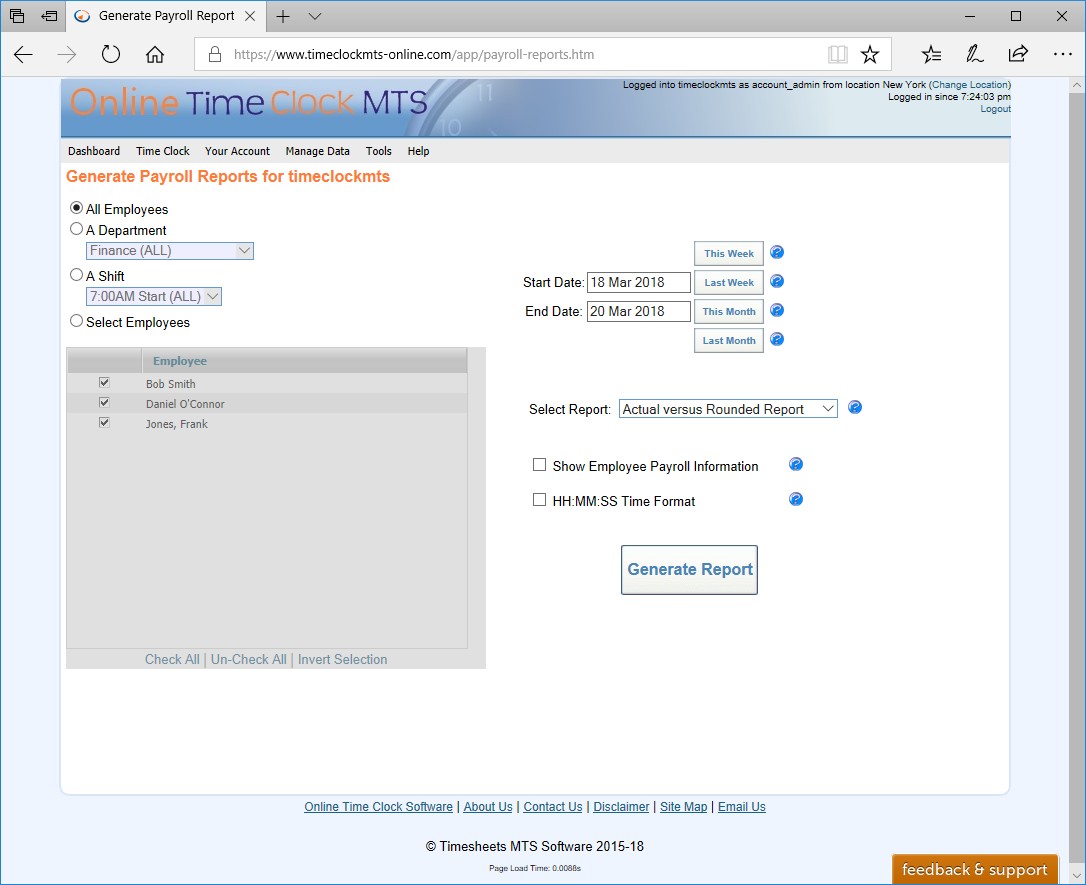
Online Time Clock MTS can report instantly on your employee's time clock information. There's a bunch of reports available and all them can be viewed and emailed as PDF files or opened in your
choice of spreadsheet.
Click to View Reporting Screens
Shifts, Departments and Holidays

You can easily group and report on employees by assigning them to shifts or departments. Holidays can be used to pay employees for those pesky State or Federal Public Holidays.
Click to View Department, Holidays, and Shifts Screens
Time Clock Employment Types
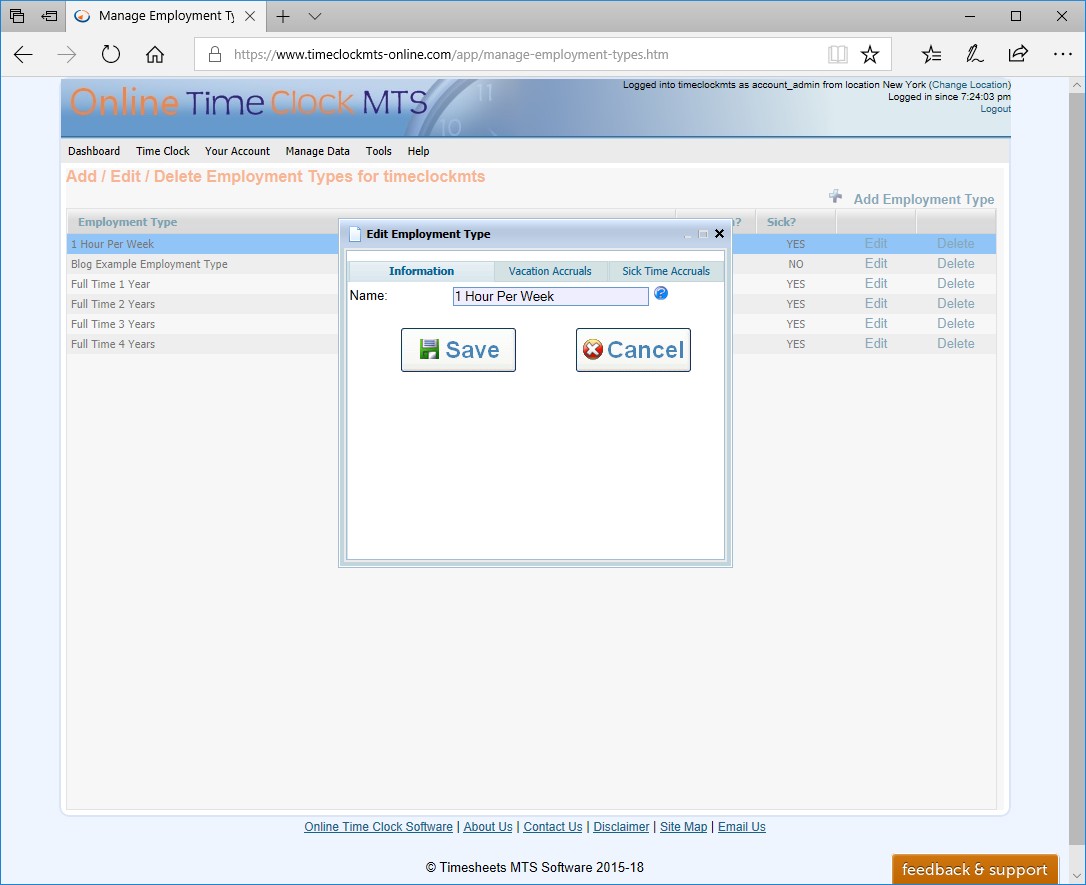
Each employee in Online Time Clock MTS can have an employment types. Employment types are used to control whether employees accrue sick or vacation time, and the rate at which they accrue
that time as well as any limits to the accruals.
Click to View Employment Type Screens
Messages in Online Time Clock MTS
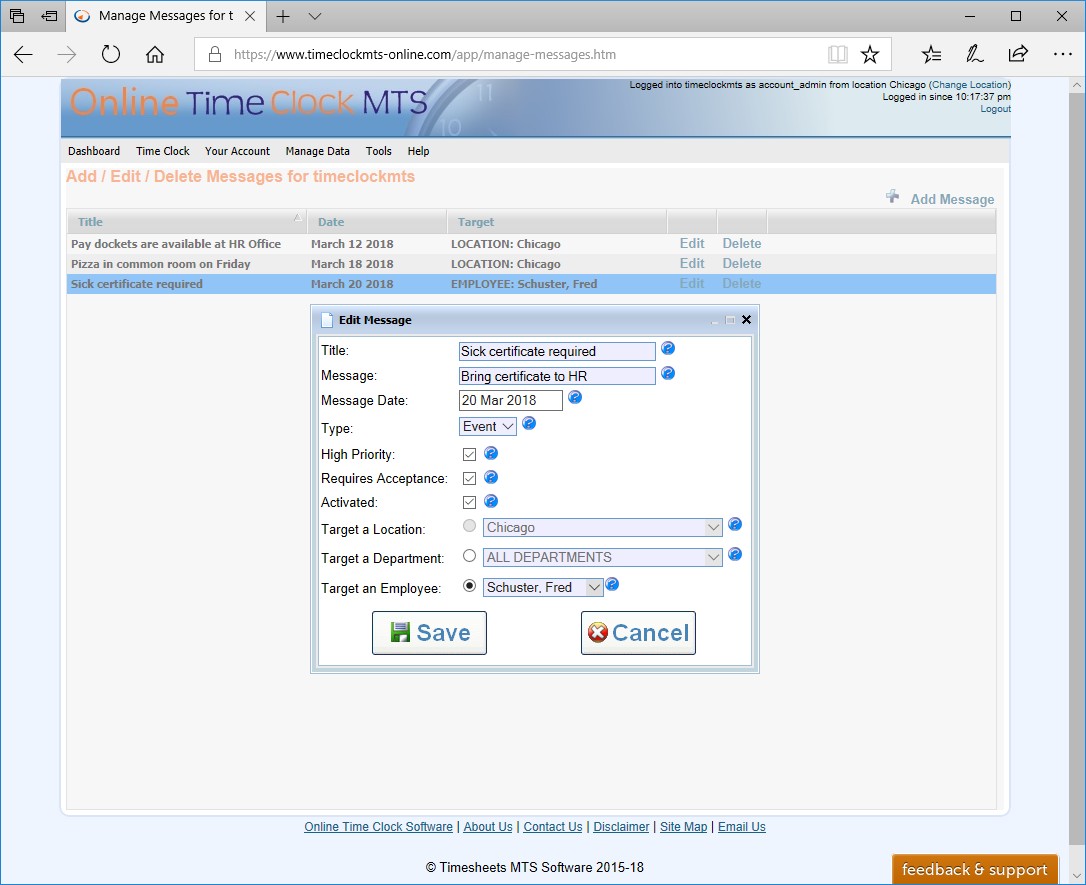
Messages are a great way for your timeclock administrators to display messages on your employee timeclocks or to show popup messages targeted at individual employees.
Click to View Employee Messages Screens
Managing Employee Time Punches
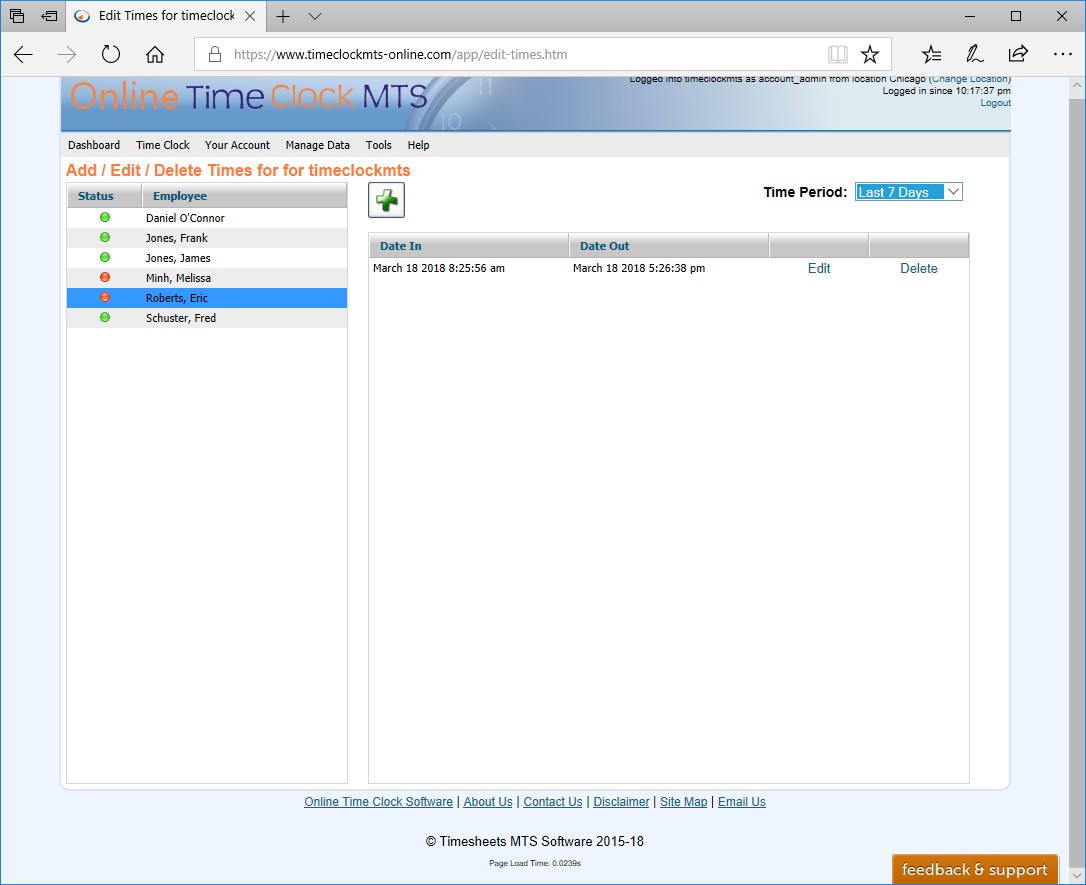
Employees will forget to punch in and out, accidentally punch out late, in too early, or forget to clock out for lunch. Your time clock administrators can use the Edit Time Punches
screen to make all of these adjustments, as well as being able to forward enter time punches for vacation or sick time taken.
Click to View Managing Employee Time Screens
Managing Time Clock Settings
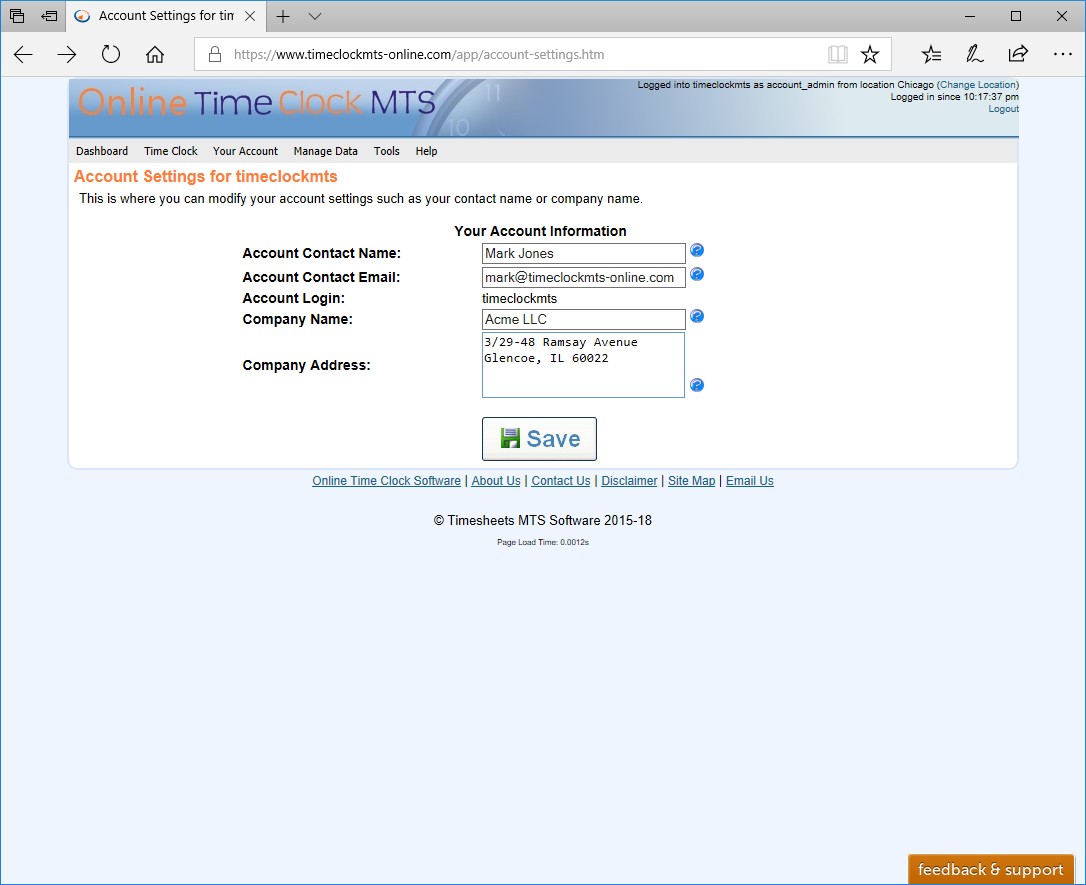
The time clock administrator will use the time clock options screens to configure most of the global settings that control how your time clock account behaves. For example, you'd use these screens
to turn on GPS tracking, or time logging, or set account-wide overtime limits.
Click to View Time Clock Options Screens
